Security built so even we can't read your photos
A plain-language look at why Archivios' end-to-end encryption is different — and exactly how the recovery code works, no cryptography background needed.
Why Archivios' security stands apart
Most photo apps rely on standard disk-level encryption at rest — the provider can still decrypt your files whenever they need to. For us, it's end-to-end encryption instead — the photos themselves are unreadable to anyone but you.
Zero-knowledge encryption
Your photos are locked on your device with a key that never leaves it. We never receive it, derive it, or store a copy — anywhere.
No AI scanning, ever
No content analysis, no indexing, no ML processing of your photos. Not for ads, not for "features" — not at all.
No backdoor, for anyone
Not Archivios, not a data breach, not a subpoena, not an attacker. There's no master key to hand over because one was never created.
Encrypted in transit, everywhere
Every connection — app to server, server to storage — runs over TLS 1.3. Nothing travels in the open.
Certificate pinning on mobile
The app verifies it's really talking to Archivios' servers, blocking man-in-the-middle attacks even on compromised networks.
Only the real app gets in
Every request is verified to come from a genuine, untampered copy of the app — automated bots, scrapers, and fake clients are turned away before they ever reach your data.
Recovery that isn't a single point of failure
Trusted recovery contacts mean losing one code or one device doesn't mean losing your photos.
3 ways to unlock your photos on a new device
Your key lives on your device — here's how it gets to a new one, safely.
Your recovery code
Type it in on the new device.
Scan a QR code
From a device that's already unlocked — no typing needed.
Ask recovery contacts
Two trusted contacts can help you regain access without the code at all.
See it in the app
Every screen, and why it's there.
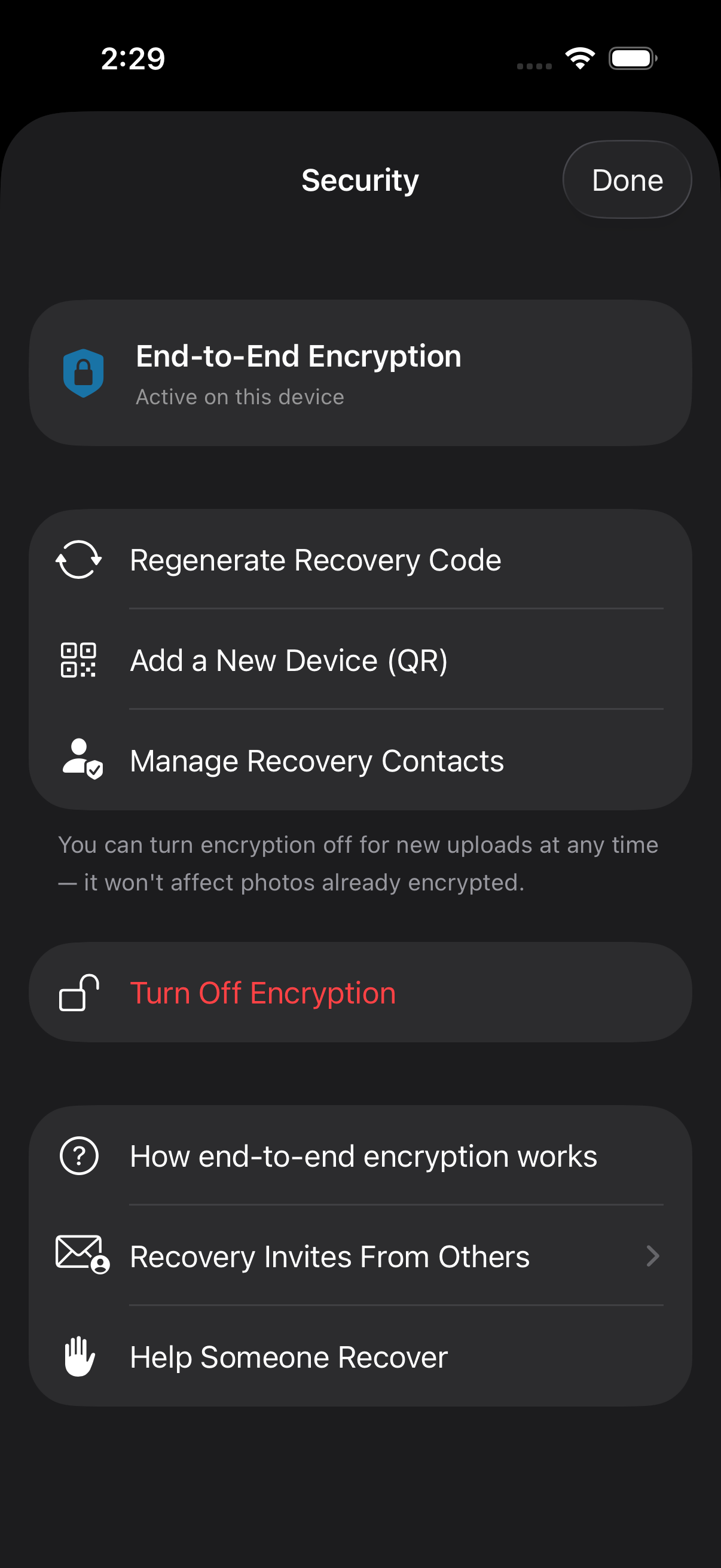
Security settings — one place to manage everything
Encryption status, device management, and recovery options live in one screen — nothing is buried in submenus.
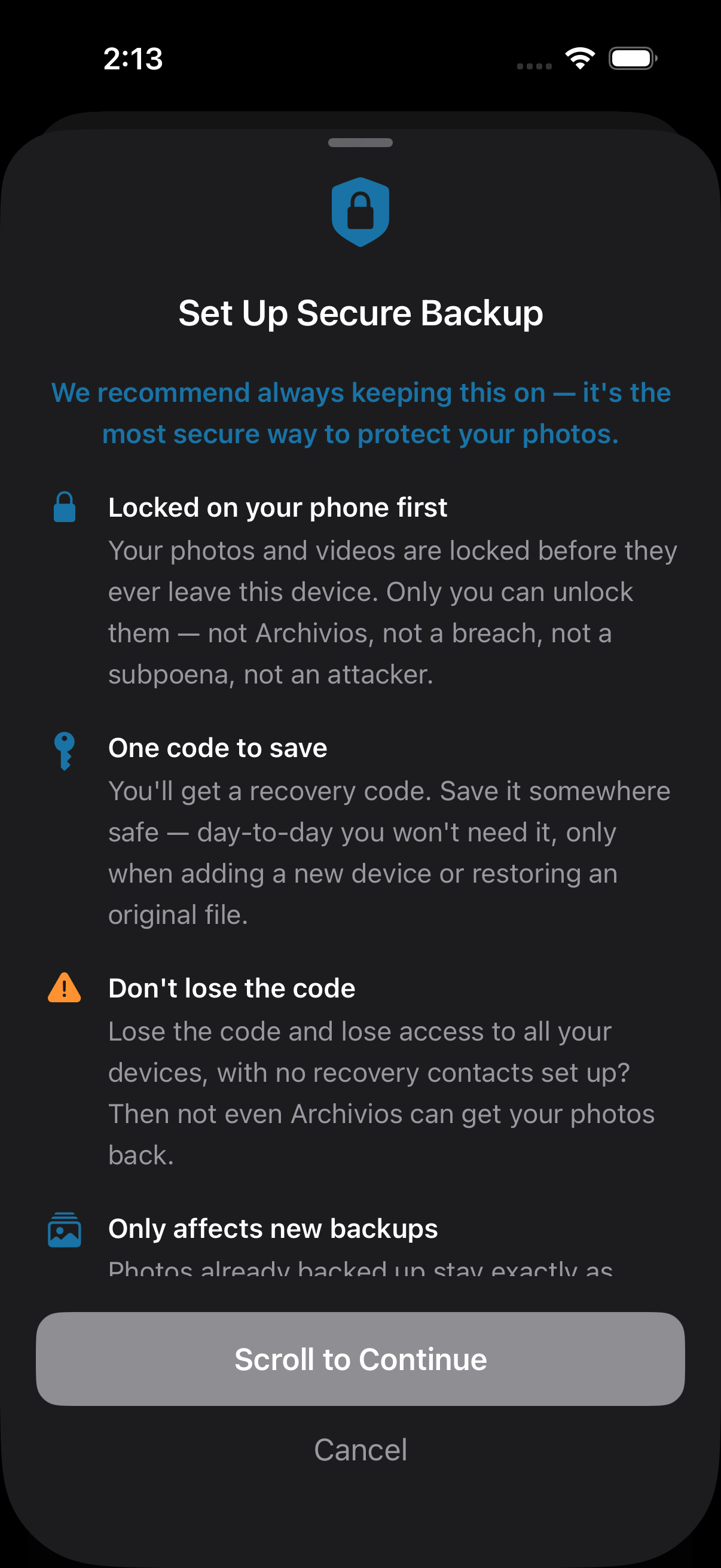
Turning on encryption, explained in plain language
You see exactly what you're agreeing to before turning it on — no fine print, no surprises later.
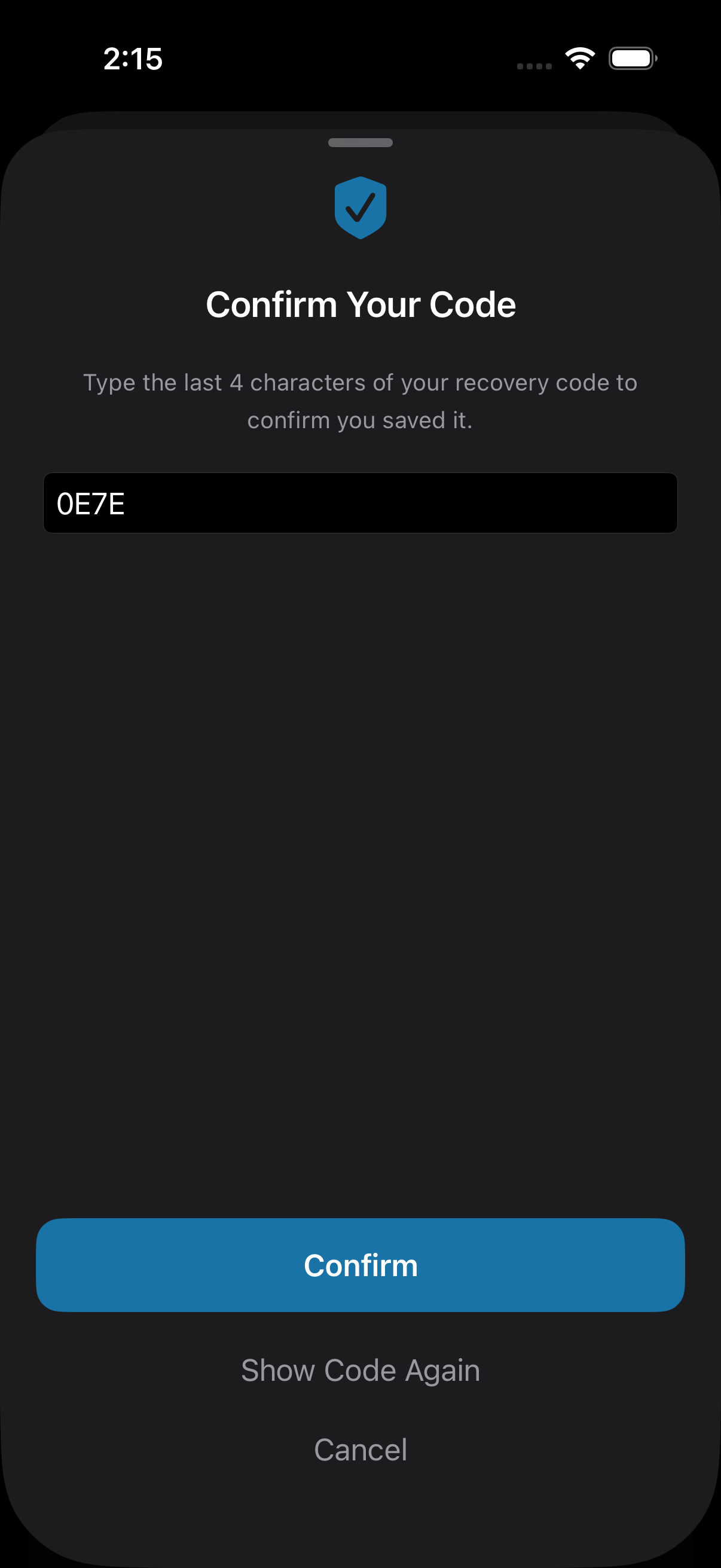
Confirming you saved your recovery code
A quick re-entry check catches 'I forgot to actually save it' mistakes while they're still easy to fix.
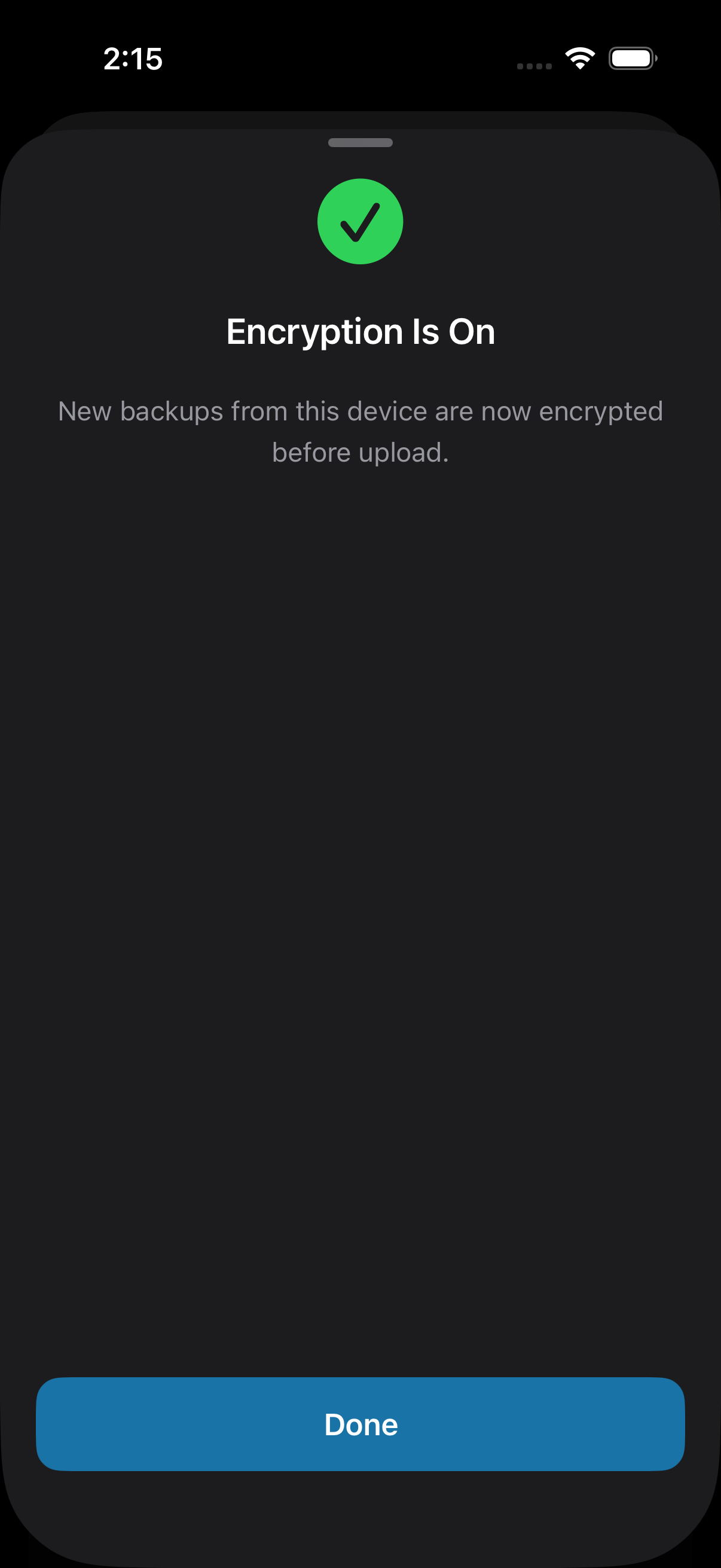
Encryption is on — new backups are locked automatically
Confirms the switch took effect immediately — every new backup from this point is encrypted on-device.
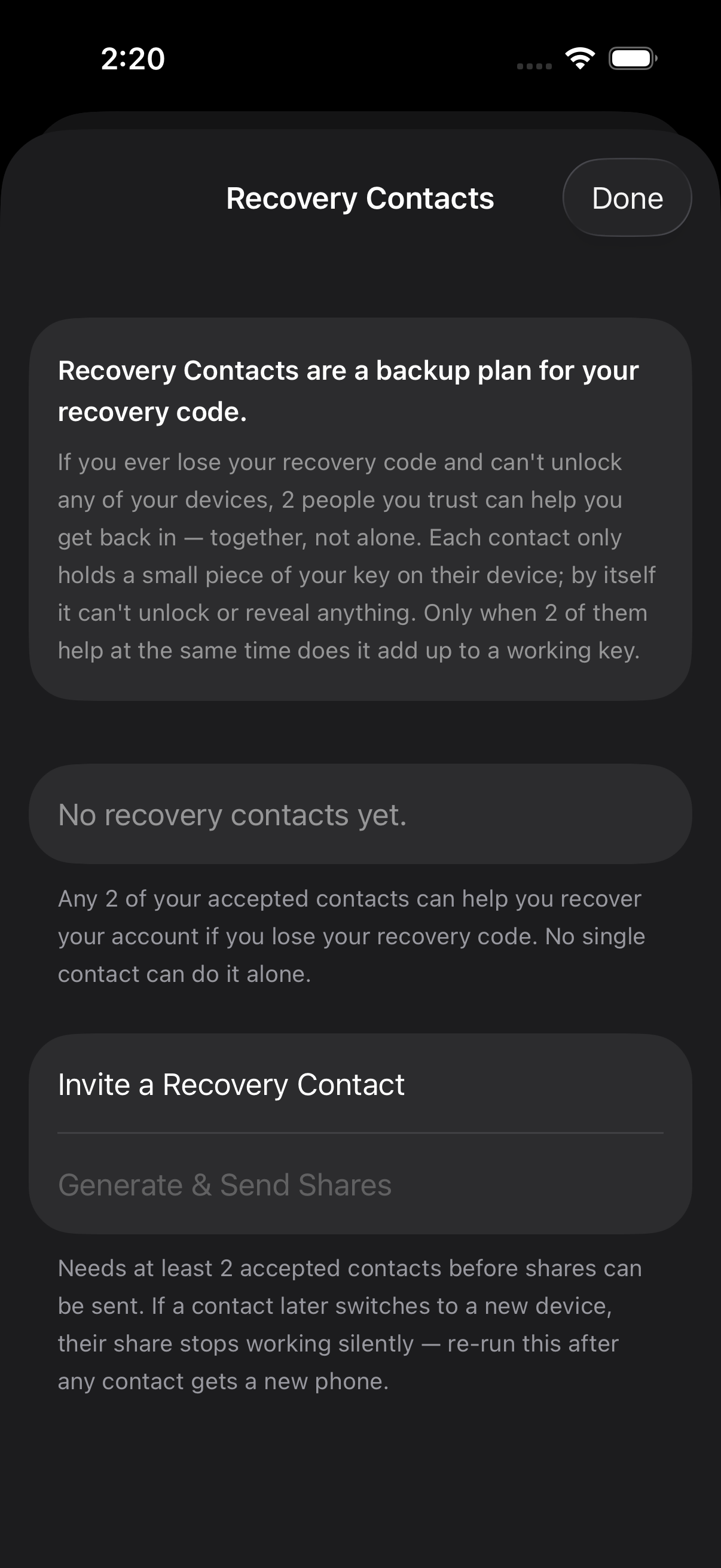
Adding trusted recovery contacts as a safety net
Your key is split across contacts using Shamir's Secret Sharing — no single contact ever holds enough to unlock your account alone.

Reviewing a recovery contact invite
Accepting never grants access to anyone's photos — you only ever hold an unusable fragment of their key.
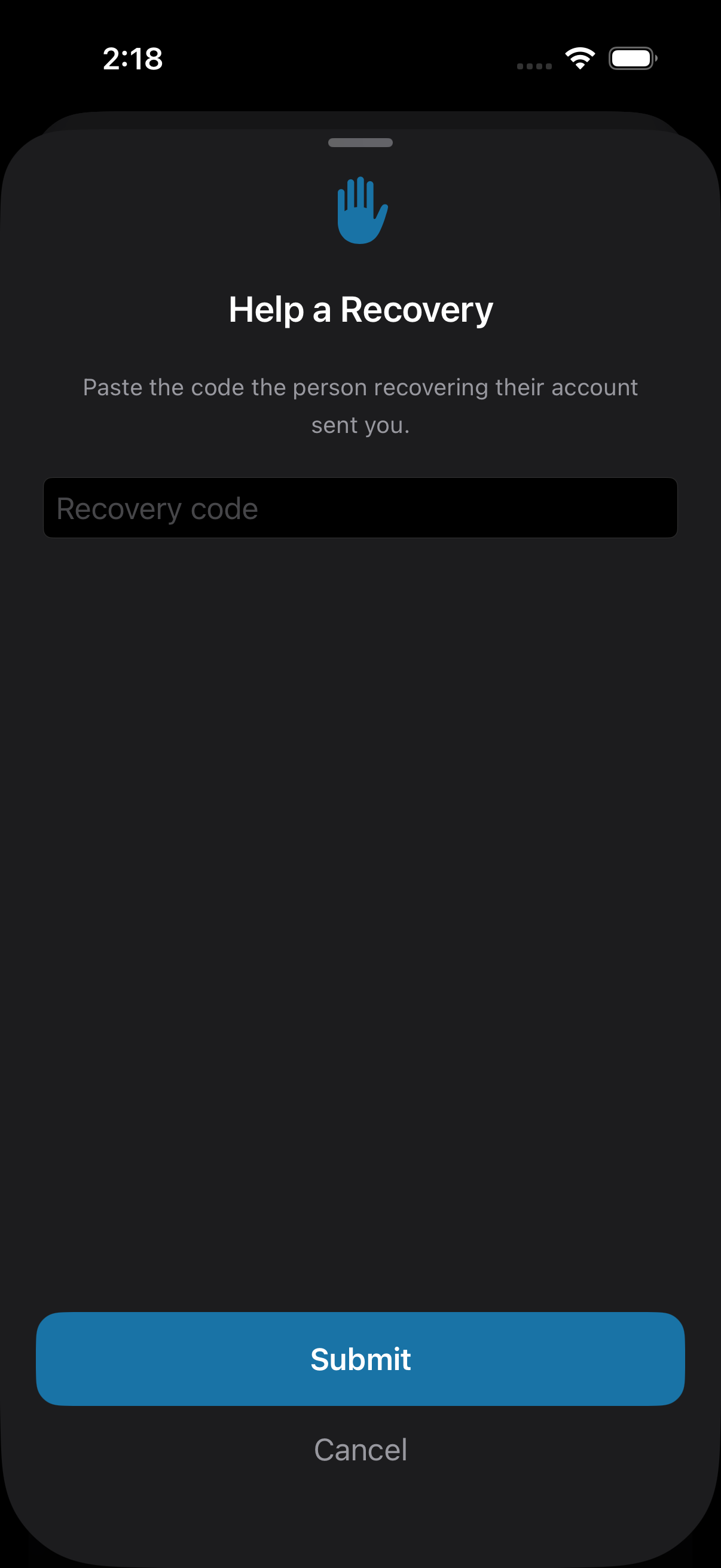
Helping a trusted contact recover their account
The actual moment a contact helps — pasting a key fragment, never seeing any of the photos it protects.
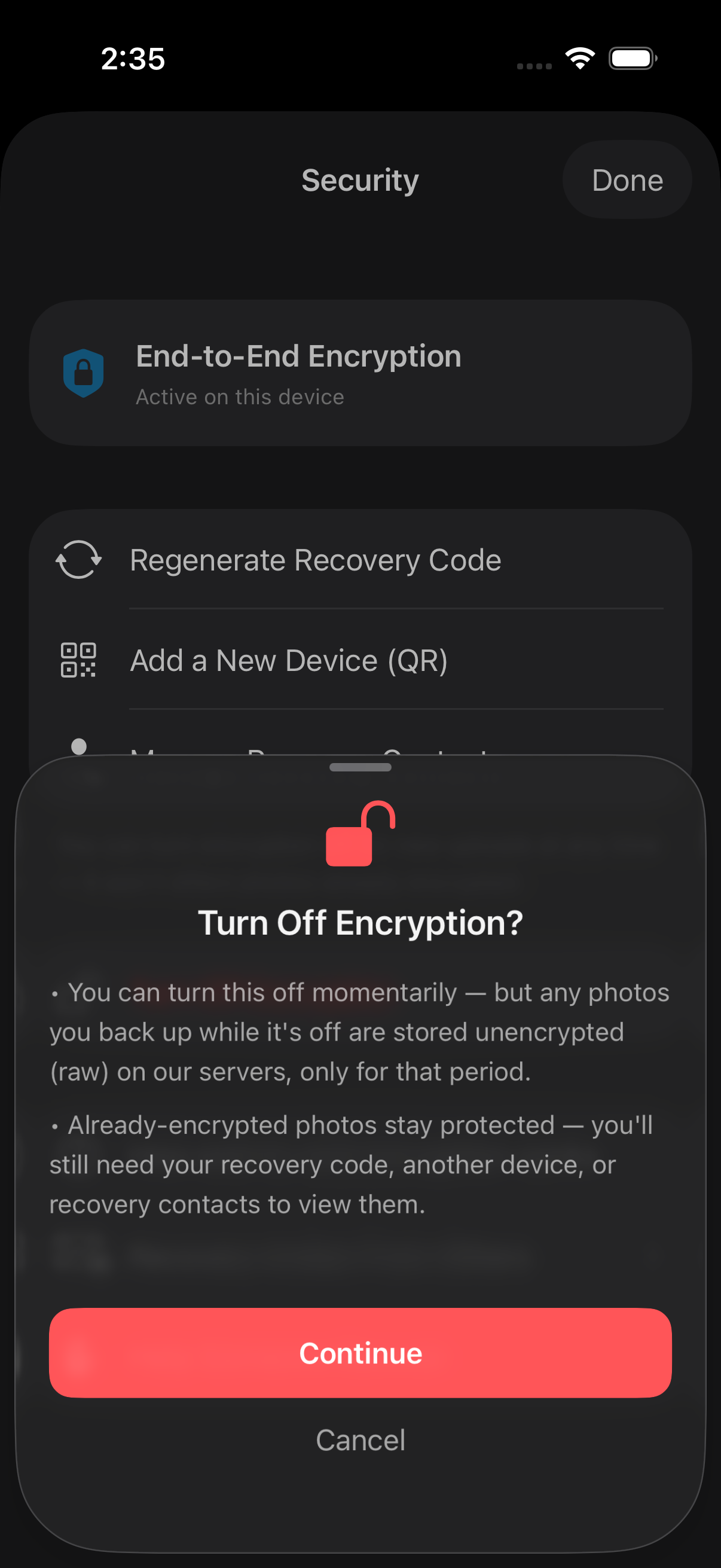
Pausing encryption requires a deliberate confirmation
A two-step, explicit confirmation — so you always know exactly what stays protected and what doesn't before pausing.
Common questions
What is the recovery code, really?
It doesn't unlock your photos directly. The actual thing protecting your photos is a key that lives on your device. The recovery code only lets you get a copy of that key onto a different device — for example, a new phone. Day-to-day, you'll never be asked for it.
What happens if I lose the code?
If you lose your recovery code, and lose access to every device that already has your key, and never set up recovery contacts — your encrypted photos cannot be recovered, by anyone, including us. That's the direct trade-off of true end-to-end encryption. It's exactly why there are three separate recovery paths, not one.
Can I turn encryption off temporarily?
Yes. Anything backed up while it's off is stored as a regular file, but only for that period — photos already encrypted stay exactly as protected as they were. Turning it back on is instant since your key is never deleted.
What does "regenerate recovery code" do?
It issues a brand-new code and retires the old one — but your photos are untouched. Think of it like a safe whose key never changes: regenerating just issues a new way to retrieve a spare copy of that same key.
Does turning encryption on protect my old photos too?
No — only new uploads from that point forward. Photos already backed up before you turned it on stay exactly as they were.
See also: FAQ · Encryption, explained without the jargon · We can't read your photos or videos